
Appearance
Permissions and Safety
DocuBench is designed so AI-driven browser activity stays visible and within controlled permissions. The product uses several layers of control: MCP client authorization, workbench isolation, MCP-owned tabs, tool approval, navigation policy, tab boundaries, browser action guards, content sanitization, and audit visibility.
MCP Client Authorization
Each workbench has its own MCP endpoint and bearer token. AI clients must use the endpoint URL and set the Authorization header to Bearer <token> before they can connect to that workbench.
Workbench servers bind to loopback, so they are intended for clients on your local machine. Regenerate a workbench token when older client access should be invalidated.
Workbench Isolation
A workbench is the control surface for one MCP browser environment. Each workbench has its own endpoint, token, settings, browser tabs, navigation policy, and optional Site Agent tabs.
Use separate workbenches when different AI agents or workflows need different allowed sites, tab limits, audit settings, or browser state.
DocuBench backend services are not in the MCP session data path. The local desktop app owns browser authority, tool validation, tab boundaries, navigation policy, and audit handling.
AI Agent Tool Permission
The DocuBench MCP server exposes browser operation tools such as listing tabs, navigating, reading page content, taking screenshots, clicking, typing, dragging, and scrolling.
The first time an AI agent calls a DocuBench tool, the AI client may ask for your permission. Some clients also let you permanently approve tool usage so repeat browser operations can be automated.
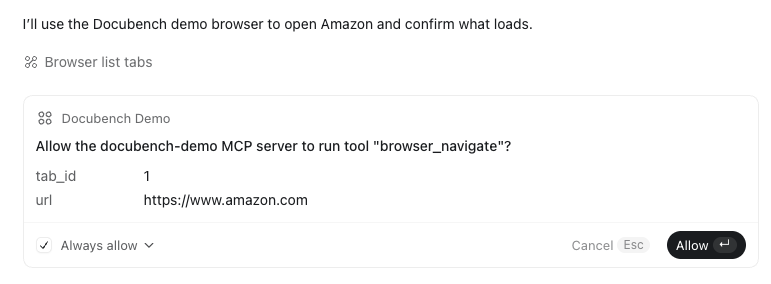
Tool approval in the AI client grants the agent permission to call the tool. The actual browser action is still constrained by DocuBench workbench policy, tab type, site boundary, and safety checks.
User Tabs and MCP Tabs
Normal browser tabs that you control are separate from MCP-owned tabs. AI agents receive MCP tab IDs only for tabs owned by the running workbench.
This separation lets you use the browser normally while keeping AI activity inside the workbench scope.
MCP Tab Types and Boundaries
DocuBench uses different MCP tab types with different permission behavior:
| Tab type | Purpose |
|---|---|
| Navigation tab | General browsing controlled by workbench navigation policy. |
| Site Agent tab | Dedicated tab for one configured website. |
| Developer Host tab | Dedicated tab for local or developer-controlled workflows. |
Navigation tabs are general-purpose MCP tabs. Web sites in navigation tabs are treated as untrusted. Agents can read content, capture screenshots, navigate to allowed sites, and submit HTTP GET based search forms when DocuBench can classify them safely. General form submission is blocked.
Site Agent tabs are dedicated to one configured website. Use them for sites that need preserved session state, repeated use, or trusted operations by the agent. Site Agent tabs stay inside their configured site boundary. Direct navigation outside that boundary is blocked.
Developer Host tabs are dedicated to local or developer-controlled workflows. They also stay inside their configured site boundary. Compared to Navigation and Site Agent tabs, Developer Host tabs can expose unmodified HTML content to the agent for development workflows.
Navigation Control
Workbench navigation tabs use an allow list for external sites. Allowed domains match the exact hostname and its subdomains.
For example, allowing example.com also allows docs.example.com.
Local development URLs such as localhost and 127.0.0.1 are allowed for local HTTP or HTTPS workflows.
DocuBench maintains workbench-level and global allow lists and deny lists to control which websites AI agents may visit. Before starting a workbench, you can update the hosts in those lists and choose what should happen when an agent navigates to a new website.
Navigation Approval
Navigation approval applies when an AI agent tries to navigate a general Navigation tab to a site that is not already allowed by the workbench configuration.
The workbench policy decides what happens:
| Policy | Behavior |
|---|---|
| Reject all | Unknown domains are blocked. |
| Manual approval | DocuBench asks you to approve or deny the site. |
When manual approval is configured, DocuBench shows a pending approval panel in the workbench and sends a system notification.
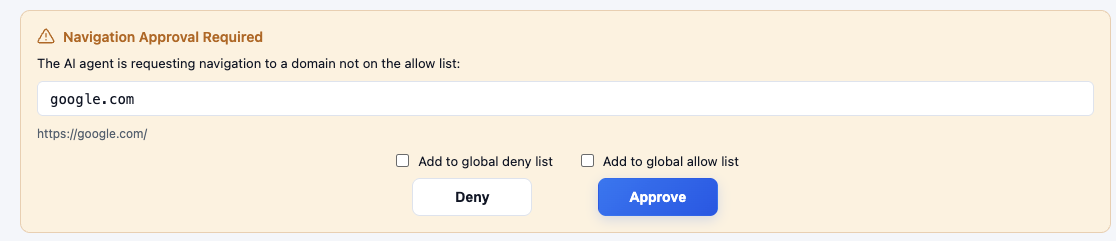
Your approve or deny decision is recorded in the allow list or deny list.
Site Agent tabs and Developer Host tabs do not use manual approval for cross-site navigation. They stay inside their configured site boundary, and attempts to leave that boundary are blocked.
Browser Action Guards
DocuBench applies extra guards around browser actions that can have side effects.
- Downloads from MCP tabs are blocked.
- Popup and new-window requests are controlled or blocked.
- Sensitive or ambiguous form submissions can be blocked.
- Password and file-upload fields are restricted.
- General Navigation tabs allow ordinary search-like GET forms when DocuBench can classify them safely.
These guards apply even when the AI client has granted tool-call permission.
Content Reading and Sanitization
browser_get_content returns different content based on the tab type.
For Navigation tabs and Site Agent tabs, DocuBench sanitizes HTML before sending it to the AI agent. Sanitization keeps useful page structure and text while removing behavior, presentation noise, tracking artifacts, and large inline graphics that inflate the response without helping the agent reason about the page.
Sensitive data, such as CSRF tokens and hidden session or security form fields, is also removed during sanitization.
For Developer Host tabs, browser_get_content returns unmodified HTML DOM data for agent-assisted development workflows.
Site Instruction Safety
Site instruction provides guidance to the AI when it works on matching URLs. Use it to describe where the agent should start, what workflow to follow, and which parts of a site matter for the task.
Keep site instruction specific and operational. Do not put secrets, passwords, API keys, private tokens, or other sensitive values in site instruction.
Audit Visibility
After a workbench starts, you can monitor and review the AI agent's browser operation event log in the Audit Panel. Live audit entries are visible in the workbench during a running session.
Use the Audit Panel to review navigation attempts, approvals, denials, and tool actions. Depending on plan and settings, a workbench can also save audit data to its configured work folder when audit persistence is enabled.
Practical Safety Checklist
- Use a separate workbench for each distinct AI workflow or trust boundary.
- Share only the endpoint and bearer token for the workbench the client should use.
- Regenerate the token when old client access should be invalidated.
- Keep allow lists narrow and use deny lists for sites that should never be visited by agents.
- Use manual approval when you want to review new-site navigation decisions.
- Use Site Agent tabs for repeated trusted work on one configured website.
- Avoid putting secrets in site instruction or ordinary webpage content the agent may read.
- Review the Audit Panel during and after important sessions.