
Appearance
Codex
Add a DocuBench workbench as an MCP server in your Codex configuration.
Codex Desktop Application
The following steps have been verified on Mac. Codex Desktop for Windows has issue setting up MCP server through UI. You may need to add it manually in the config file. Follow the instruction in the section "Code CLI".
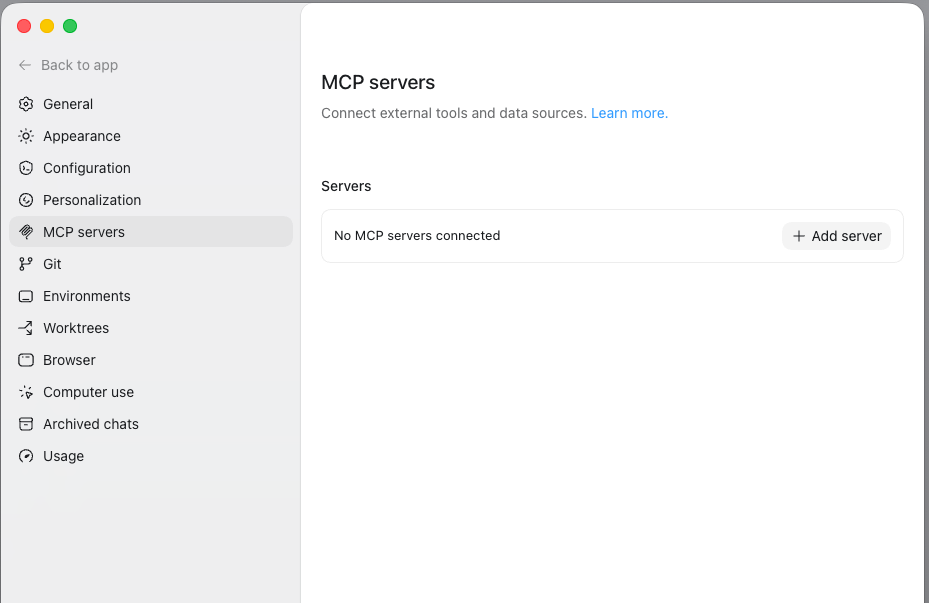
Open application Settings, select "MCP servers", then click "Add server".
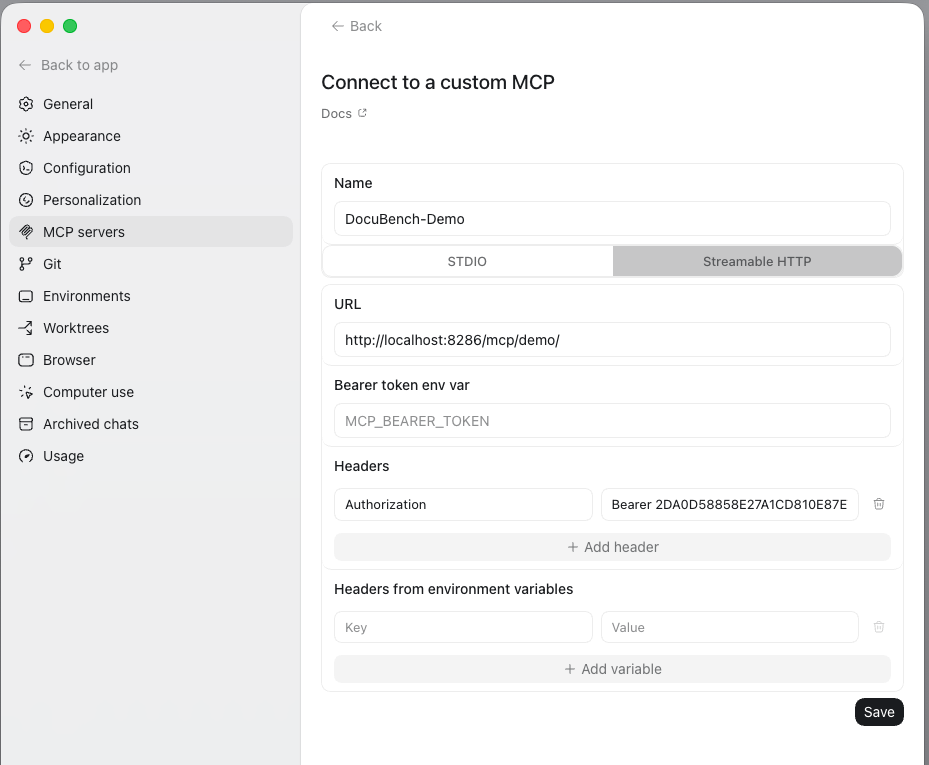
Enter a name for the MCP server, then select "Streamable HTTP".
In the URL field, paste the endpoint URL copied from the workbench.
Each entry in Headers section has two fields:
- Enter "Authorization" in the first field.
- Enter "Bearer <token>" in the second field. The <token> value is copied from the workbench "Bearer Token" value.
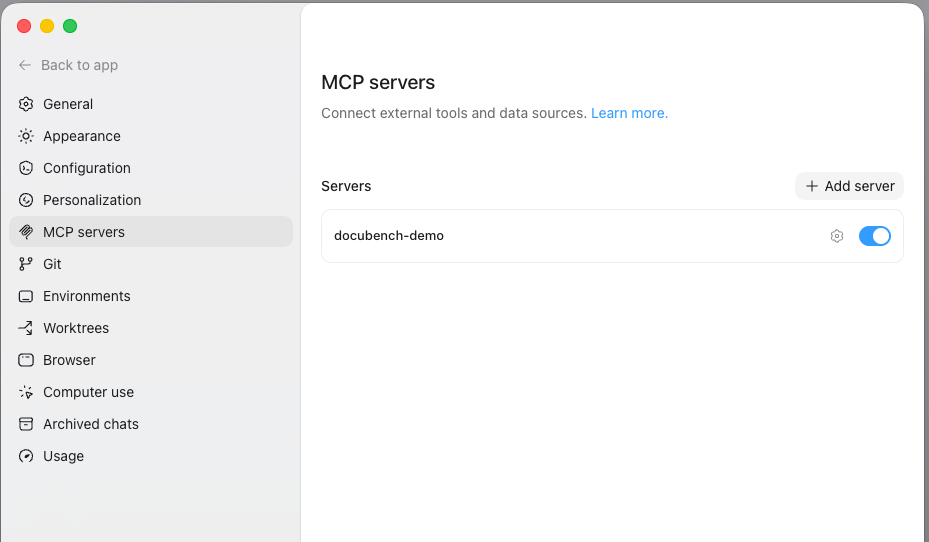
After saving the settings, you may need to restart the Codex application.
In the Codex application, check the "MCP servers" setting to confirm the server is connected.
Codex CLI
Create or edit your Codex config file and add a DocuBench MCP server.
toml
[mcp_servers.docubench-demo]
url = "http://localhost:8286/mcp/demo/"

[mcp_servers.docubench-demo.http_headers]
Authorization = "Bearer <token>"
Replace the URL and token with the values shown in the DocuBench workbench.
The default config file location is at:
- Mac:
~/.codex/config.toml - Windows:
%USERPROFILE%\\.codex\\config.toml
Verify
Use the /mcp command in your session to list connected MCP servers.
